ChatGPT has evolved from a simple AI chatbot into a platform that can work with external tools, applications, data sources, and business workflows. One of the ways these capabilities are organized today is through plugins, which package skills and app integrations together.
However, there is an important update for anyone searching for how to use ChatGPT plugins: the old OpenAI ChatGPT Plugins system from 2023 was deprecated. In 2027, OpenAI uses a newer Plugin Directory where plugins can package skills, apps, and app templates.
This guide explains what ChatGPT plugins are today, how to find and connect them, how to use them in conversations, and what to check before giving a plugin access to your data.
TL;DR: How to Use ChatGPT Plugins
If you want the quick version:
- Open ChatGPT.
- Open the Plugin Directory or go to Settings → Plugins.
- Browse or search for a plugin that matches your task.
- Open its listing and check its capabilities and required apps.
- Select Connect if available.
- Complete the required authentication or OAuth process.
- Use the plugin in ChatGPT through an @ mention or, where supported, + → More.
- Review permissions before allowing a plugin to access or modify external data.
Plugin availability and functionality can depend on your plan, workspace permissions, region, role, and the apps included in the plugin.
What Are ChatGPT Plugins?
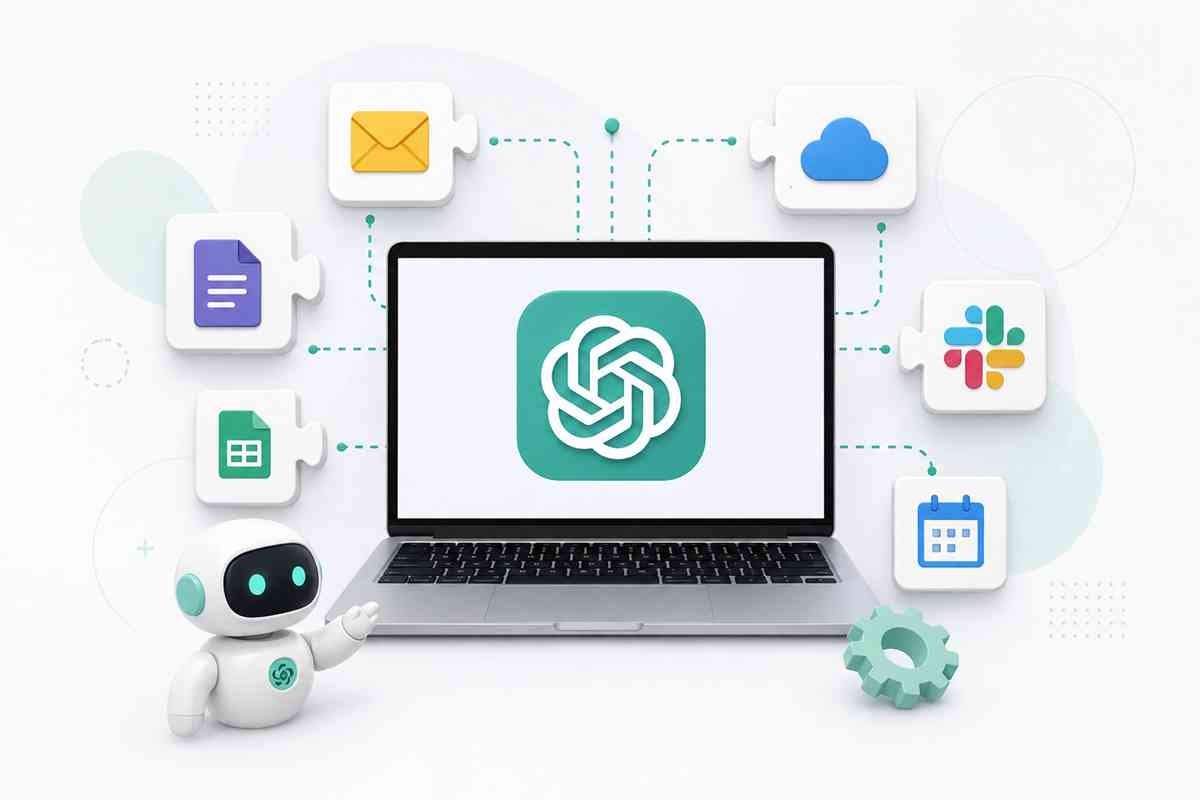
A ChatGPT plugin is a packaged capability designed to help ChatGPT perform a particular workflow.
A plugin can contain:
- Skills – reusable instructions, prompts, and workflow patterns
- Apps – connections to external services, data, and actions
- App templates – configurations that can help organizations set up required applications
This means a plugin is more than a simple add-on. It can combine instructions and external tools so ChatGPT can complete a workflow without requiring you to manually switch between multiple services.
For example, a business plugin might combine:
ChatGPT → CRM data → AI analysis → Customer information → Automated action
Depending on its capabilities, a plugin may allow ChatGPT to search connected information, reference documents, perform actions, or interact with external applications.
Important: Are Old ChatGPT Plugins Still Available?
This is where many older articles become confusing.
OpenAI’s original ChatGPT Plugins system was introduced in 2023, but those original plugins were later deprecated.
The current 2026 system uses a Plugin Directory. OpenAI states that the directory is now the primary place to discover workflow capabilities across ChatGPT and Codex. Plugins can contain apps, skills, and app templates.
So, if you find an older tutorial telling you to install a specific legacy ChatGPT plugin from the old plugin store, the instructions may no longer match the current ChatGPT interface.
How to Use ChatGPT Plugins Step by Step
Step 1: Open ChatGPT
Sign in to ChatGPT through the web or supported desktop experience.
The current Plugin Directory is available across ChatGPT plans, although the ability to install or use individual plugins depends on factors such as your plan, workspace settings, role, region, and the capabilities of the included apps.
Step 2: Open the Plugin Directory
Look for the Plugin Directory in ChatGPT.
Depending on your account and interface, you may also find plugin controls under:
Settings → Plugins
OpenAI’s current documentation says users can browse plugins from the Plugin Directory, Settings → Plugins, or the Plugins entry in the sidebar on supported ChatGPT experiences.
Step 3: Search for a Plugin
Search for a plugin based on the task you want to complete.
For example, you might search for capabilities related to:
- Google Drive
- CRM
- Project management
- Data analysis
- Marketing
- Sales
- Productivity
- Research
- Business operations
- Customer support
Instead of searching only for a brand name, think about the job you want ChatGPT to perform.
For example:
“I want ChatGPT to work with my CRM.”
This can be more useful than randomly installing several plugins.
Step 4: Review the Plugin
Before connecting anything, open the plugin listing.
Check:
- What the plugin does
- Which apps it contains
- What information it can access
- Whether it can perform actions
- What permissions are required
- Whether authentication is necessary
- The plugin’s terms and privacy information
OpenAI recommends reviewing the external systems a plugin depends on and checking whether it has read-only capabilities, write capabilities, or both.
Step 5: Click Connect
If the plugin requires an external application, select Connect when the option is available.
You may then be asked to authenticate with the external service.
For example:
Plugin → Connect → External service → Sign in → Authorize → Return to ChatGPT
Some plugins may require OAuth authentication or additional setup.
Step 6: Give the Required Permissions
Pay attention to the permissions shown during connection.
A plugin that only reads information is different from one that can modify information.
For example:
Read permission:
Search customer records.
Write permission:
Create or modify customer records.
For business accounts, this distinction can be extremely important.
Step 7: Use the Plugin in ChatGPT
Once connected, you can invoke the plugin according to its supported interface.
OpenAI’s current documentation states that plugins can be invoked in ChatGPT with an @ mention. In supported interfaces, users can also select + → More and choose the relevant app.
For example, your request might look like:
@PluginName Find the latest customer records related to this project.
Or:
@PluginName Search the connected documents for information about our SEO strategy.
The exact commands depend on the plugin’s capabilities.
How to Know Whether a Plugin Is Working
After connecting a plugin, look for signs that ChatGPT is using the connected capability.
Depending on the plugin, ChatGPT may:
- Search an external service
- Retrieve connected information
- Display app-specific information
- Perform an action
- Ask for confirmation
- Request additional permissions
- Return information from the connected source
Remember that ChatGPT cannot automatically access everything in your connected account. Access depends on the permissions and capabilities configured for the plugin and underlying app.
Examples of Using ChatGPT Plugins
Plugins can support many different workflows.
1. Marketing Workflow
A marketing team could use a connected plugin to:
Search data → Analyze information → Create a summary → Prepare recommendations
For example:
“Analyze the available campaign data and identify the channels that need attention.”
2. Sales Workflow
A sales team could connect a CRM-related capability.
A workflow might look like:
CRM search → Customer information → AI analysis → Sales recommendation
For example:
“Find recent leads that have not received a follow-up and prepare a list for the sales team.”
3. Document Research
A connected document or storage app could allow ChatGPT to search relevant information.
For example:
“Find the documents related to our 2026 SEO strategy and summarize the key priorities.”
4. Project Management
A project-management integration could help users work with project information.
For example:
“Show the open tasks assigned to the marketing team and summarize the overdue items.”
The exact capabilities depend on the connected plugin and app.
ChatGPT Plugins vs ChatGPT Apps
The terms plugins and apps can be confusing because they are closely related in the current ChatGPT system.
An app provides the actual connection to an external service, information source, or action.
A plugin can package one or more apps together with skills and other workflow components.
Think of it this way:
App = Connection
Plugin = Workflow package
OpenAI explains that plugins can contain apps and skills, while apps provide capabilities such as searching external information, performing actions, displaying interactive experiences, and syncing content.
ChatGPT Plugins vs Custom GPTs
ChatGPT plugins and Custom GPTs are also different.
Plugins
Plugins are designed around workflows, external applications, skills, and connected capabilities.
Custom GPTs
Custom GPTs are customized versions of ChatGPT configured for specific purposes.
A Custom GPT might contain:
- Custom instructions
- Knowledge files
- Specific behavior
- Selected capabilities
A plugin, on the other hand, can provide access to external systems or packaged workflow capabilities.
In some situations, these technologies can complement each other.
What Can ChatGPT Plugins Do?
Depending on the plugin, capabilities can include:
- Searching external information
- Accessing connected business data
- Working with documents
- Performing actions
- Running workflows
- Connecting applications
- Retrieving live information
- Supporting research
- Automating repetitive processes
- Working with business systems
OpenAI notes that apps included in plugins can support search, deep research, synchronization, interactive experiences, and actions depending on the app’s capabilities.
Why Can’t I Find a ChatGPT Plugin?
There can be several reasons.
The Plugin Is Not Available
A particular plugin may not be listed in your directory.
Your Plan Does Not Support It
Some plugin capabilities may require a specific plan.
Your Workspace Administrator Has Restricted It
Business, Enterprise, and Edu workspaces can have administrator controls over plugin availability and app access.
The Plugin Requires Another App
Some plugins depend on an underlying application that must be enabled or configured first.
Regional or Account Restrictions
Availability can also depend on supported regions, account configuration, and other platform requirements.
What to Do When a Plugin Requires App Setup
Sometimes you may see a message indicating that an app needs setup.
This generally means the plugin depends on an external application that has not yet been configured for your account or workspace.
For a managed workspace, an administrator may need to:
- Enable the required app.
- Configure the app.
- Create or publish an app from a template if required.
- Assign access to the appropriate users or roles.
- Allow the plugin to use the app.
OpenAI notes that a plugin cannot use an app template by itself if the required app has not been properly configured.
Security Tips When Using ChatGPT Plugins
Plugins can potentially connect ChatGPT to external systems, so security should be part of your setup process.
Check Permissions
Before connecting a plugin, determine whether it can:
- Read data
- Search information
- Create records
- Modify information
- Delete information
- Trigger external actions
Use the Principle of Least Privilege
Only provide the access that is actually required.
If a workflow only needs to read information, avoid granting unnecessary write access.
Review Privacy Policies
Check the plugin’s terms and privacy information before connecting sensitive business or personal data.
Also Read: ChatGPT Personalization: Complete Guide to Features, Settings & Benefits
Start With a Test Workflow
For important business systems, begin with a low-risk workflow.
For example:
Test account → Read-only access → Verify results → Expand access
Monitor Connected Plugins
Regularly review which plugins and apps are connected to your account or workspace.
OpenAI recommends periodically reviewing access and considering security, privacy, legal, and data-residency requirements before expanding plugin use.
How to Disable a ChatGPT Plugin ?
If you no longer want to use a plugin, workspace administrators can manage plugin status through the workspace plugin settings.
Disabling a plugin disables the apps and skills included in that plugin, but it is separate from uninstalling the plugin package.
For connected third-party services, you may also need to disconnect or revoke access through the external service itself.
Also Read: How Adding Photos and Files Improves Collaboration in ChatGPT
Best Practices for Using ChatGPT Plugins
For better results, follow these practices:
Start With One Clear Task
Instead of giving a plugin several unrelated instructions, start with a specific objective.
Give Context
Tell ChatGPT what you are trying to accomplish.
Instead of:
“Find data.”
Try:
“Search the connected CRM for leads created during the last 30 days and identify those without a recorded follow-up.”
Review AI Actions
When a plugin can modify external data, review the proposed action carefully.
Use Read-Only Access Where Possible
Read-only access is generally safer for research and reporting workflows.
Test Before Scaling
Test the workflow with a small amount of information before using it across an entire business process.
Common Problems With ChatGPT Plugins
Plugin Is Not Showing
Check your plan, workspace permissions, region, and whether the plugin is available in the current Plugin Directory.
Connect Button Is Disabled
The underlying app may require additional setup or may not be available for your role or workspace.
Plugin Cannot Access Your Data
Check whether the correct account is connected and whether the plugin has the necessary permissions.
Plugin Gives Unexpected Results
Review the prompt, connected data, permissions, and workflow instructions. AI output should also be verified when accuracy matters.
Plugin Stops Working
External APIs, permissions, authentication, or service availability can affect connected workflows.
How ChatGPT Plugins Can Help SEO Professionals
Plugins and connected apps can also be useful for SEO workflows.
An SEO professional could potentially use connected tools to:
- Research content opportunities
- Analyze documents
- Work with project-management data
- Review keyword information
- Organize content workflows
- Summarize reports
- Search connected company resources
- Automate repetitive reporting tasks
For example:
SEO data → Connected app → ChatGPT analysis → Content recommendations → Human review
This can reduce repetitive work while keeping strategic decisions under human control.
Are ChatGPT Plugins Free?
Plugin availability is not necessarily the same for every user.
OpenAI’s current documentation states that the Plugin Directory is visible across ChatGPT plans, but the ability to install or invoke a specific plugin can depend on the user’s plan, workspace settings, role, region, and the capabilities of its included apps. Some plugins may also require paid access or external services.
Therefore, always check the individual plugin listing and your account’s available capabilities rather than assuming every plugin is free.
Final Thoughts
Learning how to use ChatGPT plugins is less about installing random tools and more about understanding how ChatGPT can work with connected applications and reusable workflows.
The current ChatGPT plugin system is different from the original 2023 plugin model. Today’s Plugin Directory can package apps, skills, and workflow capabilities, allowing users and organizations to connect ChatGPT with external tools and data.
For beginners, the best approach is to start with one specific task, find a relevant plugin, review its permissions, connect the required app, and test the workflow before expanding its access.
When used carefully, plugins can turn ChatGPT from a tool that simply answers questions into an interface for working with the applications and information you already use.
Frequently Asked Questions
What are ChatGPT plugins?
ChatGPT plugins are packaged workflow capabilities that can combine skills, external apps, and app templates to help ChatGPT perform specific tasks.
How do I use ChatGPT plugins?
Open the Plugin Directory, choose a suitable plugin, review its capabilities, connect the required app if necessary, complete authentication, and then invoke the plugin in ChatGPT using its supported method.
Are the old ChatGPT plugins still available?
The original OpenAI ChatGPT Plugins system has been deprecated. The current system uses a Plugin Directory with plugins that can package apps, skills, and app templates.
Can ChatGPT plugins access my personal data?
A plugin can only access connected information and perform actions according to its configured capabilities and permissions. Always review what an external app can access before connecting it.
Can ChatGPT plugins perform actions?
Yes, some connected apps can perform actions on behalf of users. The exact actions depend on the plugin and the underlying app.
Why can’t I use a ChatGPT plugin?
Your plan, region, workspace settings, role, plugin availability, or required app configuration may prevent you from installing or using a particular plugin.
Are ChatGPT plugins useful for SEO?
Yes. Connected tools can support SEO research, reporting, content workflows, data analysis, and repetitive tasks. However, SEO strategy and important recommendations should still be reviewed by a human.

Related Posts